
Three connections
Pick what you want the phone to do
- 1 · Ctrl w/ Smartphone Shoot from the phone Live view, shutter, exposure, timelapse and bracketing. Paired once with a QR code.
- 2 · Send to Smartphone Browse the memory card Look through the card by day or folder and download JPEGs and videos.
- 3 · FTP Transfer Func. Receive RAW and JPEG The camera sends the originals — ARW included — straight to the app.
The camera does one of these at a time: while it shares its card it doesn't take remote orders, and the other way round. Choose the mode on the camera, then open the matching tab in the app.
1 · Live control
Pair once with the QR code, then just pick the camera
-
Put the camera in Ctrl w/ Smartphone
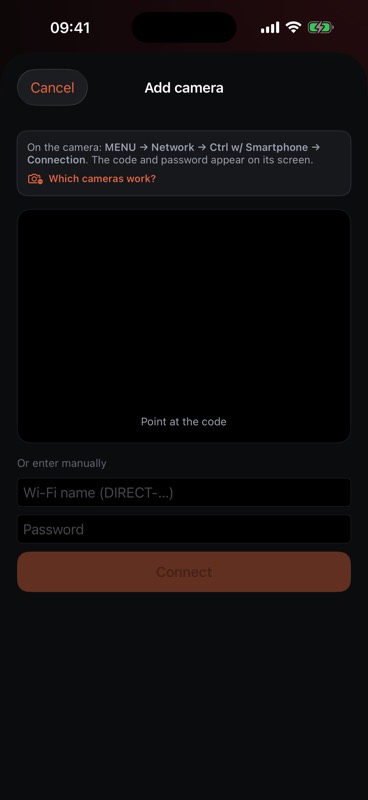
On the camera: MENU → Network → Ctrl w/ Smartphone → Connection. The code and the Wi-Fi password appear on its screen. If Ctrl w/ Smartphone isn't in the menu, the camera has no remote API — see which cameras work.
-
Scan it in Camera Red
Open the Cameras tab, tap Add camera and point the phone at the code.
No code? Under Or enter manually, type the camera's Wi-Fi name (it starts with DIRECT-) and password, then Connect.
-
Let the app join the camera's Wi-Fi
The app switches the iPhone onto the camera's network by itself — no trip to Settings. The first time, iOS asks whether Camera Red may join that network and use the local network: allow both, that is how it reaches the camera.
-
Shoot
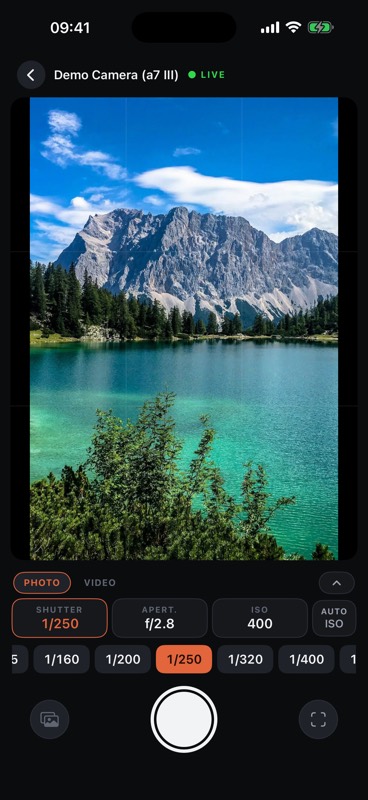
The camera appears under YOUR CAMERAS; tap it for live view. From then on, put the camera in Ctrl w/ Smartphone and pick it in the list — the pairing is remembered and the app rejoins its Wi-Fi on its own.
If the app says it couldn't join automatically, join the camera's DIRECT-… network in the iPhone's Settings → Wi-Fi; the camera is already saved and will work. If it joined but the camera doesn't respond, make sure the camera still shows its connection screen.
2 · The memory card
Browse the card through Send to Smartphone
-
Pair the camera first
The card travels over the same camera network as live control, so the camera has to be in the app's list — Cameras → Add camera, as in step 1. Adding it from the code on the Send to Smartphone screen works too: the app then takes you straight to the Card tab.
-
Have the camera share its card
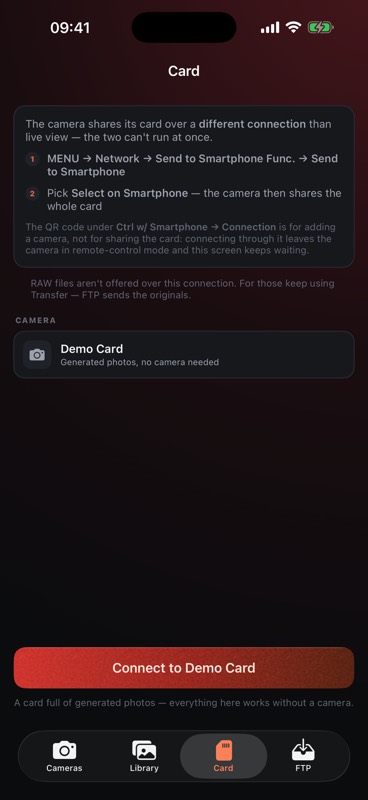
On the camera: MENU → Network → Send to Smartphone Func. → Send to Smartphone, then pick Select on Smartphone — the camera then shares the whole card.
-
Connect from the Card tab
In Camera Red, open Card, choose the camera and press Connect. The app moves the phone onto the camera's network and waits for the camera to share its card.
-
Look, pick, download
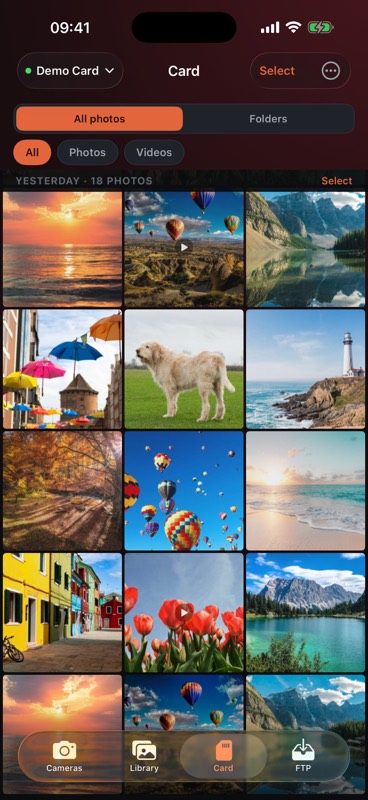
Browse by day or by folder, tap a shot to see it full screen, select and download. Where the camera offers a shot at several sizes, you choose which one to wait for.
The QR code under Ctrl w/ Smartphone → Connection is for adding a camera, not for sharing the card: connecting through it leaves the camera in remote-control mode and the Card tab keeps waiting. RAW files aren't offered over this connection — for those, use FTP. The phone stays without internet until you disconnect; Cancel puts it back on your usual Wi-Fi.
3 · RAW + JPEG over FTP
Transfer RAW from the camera to the iPhone
The camera's own FTP transfer sends files exactly as shot, ARW and JPEG both, to a receiver that runs inside Camera Red on your iPhone. Nothing goes to a server. In the app: FTP tab → Set up transfer walks through the same three steps as below.
-
Choose how the camera reaches the iPhone
This iPhone's hotspot (recommended) works anywhere, no router, and the address never changes, so you set the camera up once. A Wi-Fi network means camera and iPhone join the same router — handy at home, but the address can change later.
-
Put the camera on that network
Hotspot: on the iPhone, Settings → Personal Hotspot → Allow Others to Join, and switch on Maximize Compatibility — the camera only sees 2.4 GHz networks. Then on the camera: MENU → Network → Wi-Fi Settings → Access Point Set., choose the iPhone and type its hotspot password once. The camera remembers it.
Wi-Fi network: on the camera, MENU → Network → Wi-Fi Settings → Access Point Set., pick the network the iPhone is on and enter its password — or use the router's WPS Push button.
-
Enter the app's four values on the camera
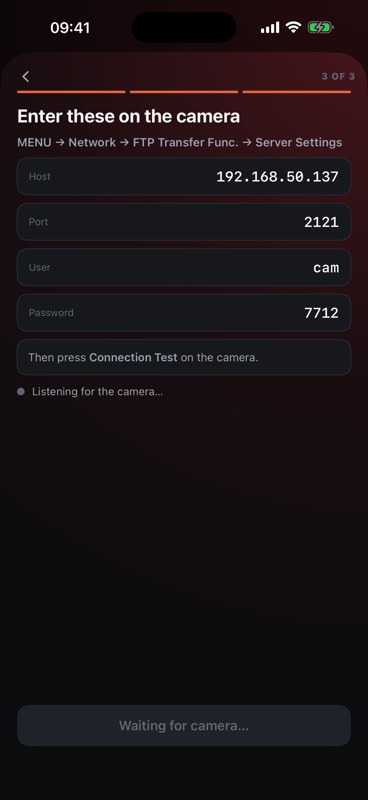
On the camera: MENU → Network → FTP Transfer Func. → Server Settings. The app shows the values on its Enter these on the camera screen:
- Host
172.20.10.1- The iPhone's address. On Personal Hotspot it is always this one; on a shared network, read it from the FTP tab's status card.
- Port
2121- Not 21: iOS doesn't give an app a port below 1024.
- User
cam- The default; editable.
- Password
7712- The default; editable.
Port, user and password live in the app under Settings → FILE TRANSFER (the gear on the Cameras tab). The defaults are the same on every phone running the app, so on a hotspot other people can see, it's worth changing them; changes apply the next time receiving is switched on. The receiver speaks plain FTP in passive mode — if the camera asks for a secure connection or for active mode, leave those off.
-
Test the connection
Press Connection Test on the camera. The app's Listening for the camera… turns into Camera connected; tap Start receiving.
-
Send photographs
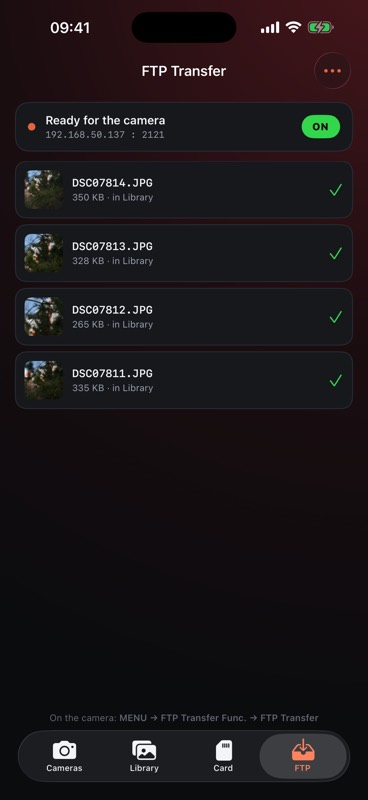
On the camera: MENU → Network → FTP Transfer Func. → FTP Transfer, pick the shots, confirm. They land in the FTP tab's list, then in your Library — and in Photos, if Copy to Photos is on. Keep that screen open while transferring.
The status card at the top of the FTP tab is the switch: ON means the receiver is listening, and beneath it is the address and port the camera should use. FTP isn't Sony-specific — any camera that can send over FTP, from any maker, takes the same four values.
Which cameras work
The test that decides it is in the camera's menu
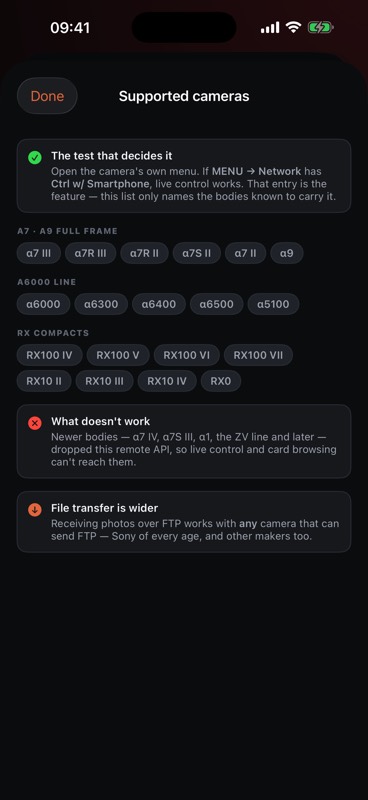
Open the camera's own menu. If MENU → Network has Ctrl w/ Smartphone, live control works. That entry is the feature — the list below only names the bodies known to carry it, roughly 2014 to 2019.
α7 · α9 full frame
- α7 III
- α7R III
- α7R II
- α7S II
- α7 II
- α9
α6000 line
- α6000
- α6300
- α6400
- α6500
- α5100
RX compacts
- RX100 IV
- RX100 V
- RX100 VI
- RX100 VII
- RX10 II
- RX10 III
- RX10 IV
- RX0
Newer bodies — α7 IV, α7S III, α1, the ZV line and later — dropped this remote API, so live control and card browsing can't reach them. Receiving photos over FTP works with any camera that can send FTP, Sony of every age and other makers too. Camera Red is not made by, endorsed by or affiliated with Sony.
Ready
Try it before the camera is even out of the bag
A demo camera and a demo card ship inside the app: Settings → DEMO → Show demo camera, then Demo Camera on the Cameras tab, or Demo Card on the Card tab. Every feature is free for seven days, then $2.99 once — no subscription.
Stuck on a step, or a camera that should work and doesn't? Write to menceralexust2@gmail.com — it reaches the person who wrote the app.